

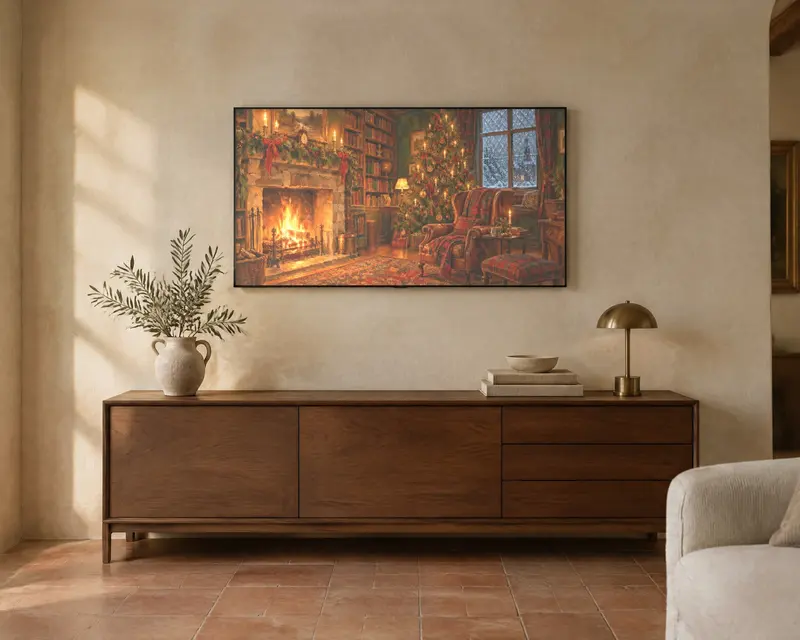
Guide
How to put art on a Samsung Frame TV
It takes about two minutes once the file is on your phone. Menu names change a little between TV years, so look for the closest match on yours.
What you need
- A Samsung Frame TV, or any TV with an art mode.
- The SmartThings app on your phone, signed in and connected to your TV.
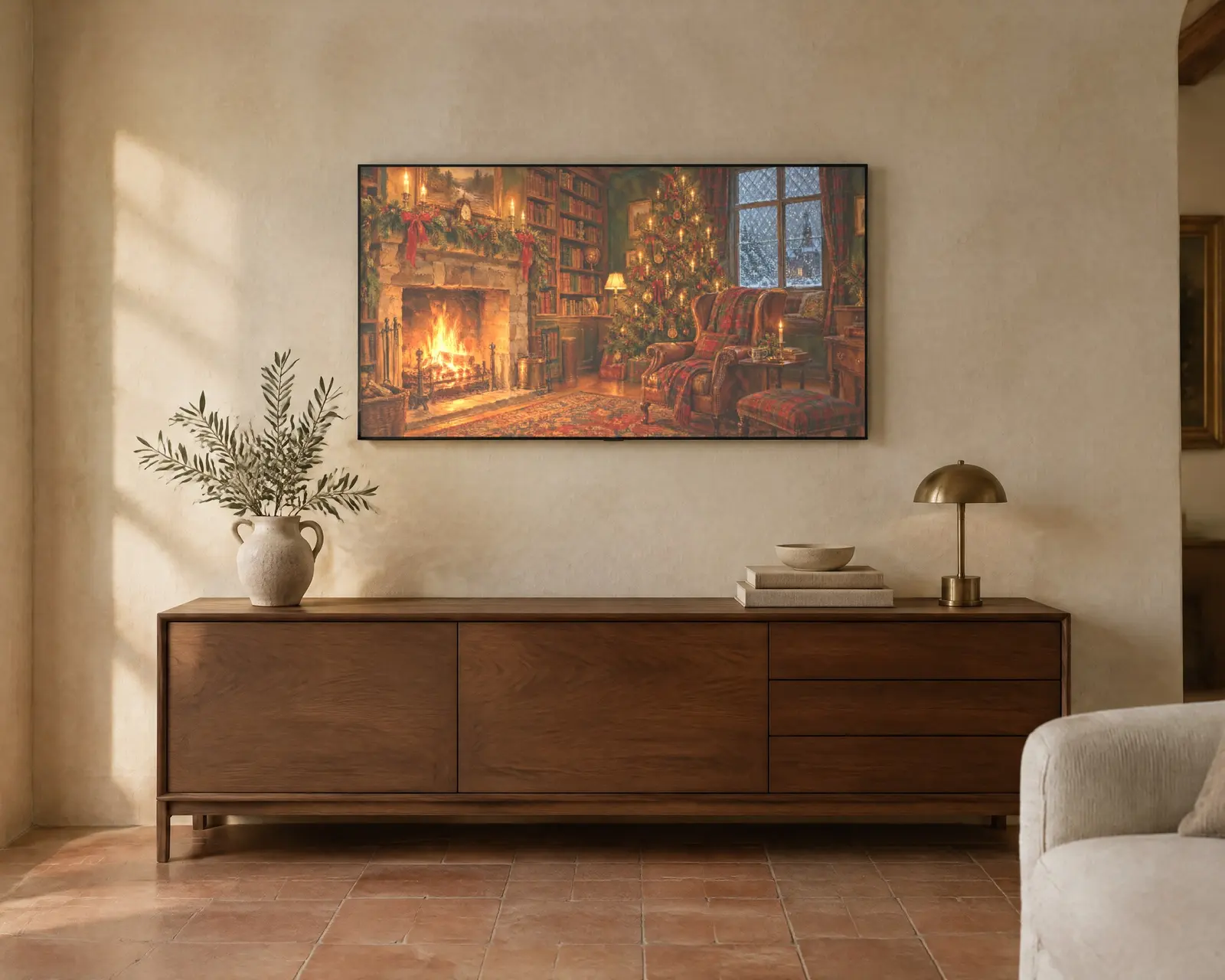
- A 16:9 image at 3840 × 2160. Every Lepus Frame TV painting is made at this size.
Step by step
- Download the file. After you buy, Etsy emails a download link. Open it on your phone and save the JPG to your photos. If it comes as a zip, open the zip first.
- Open SmartThings. Choose your TV from the device list.
- Go to Art Mode. Look for the Art Mode or Art Store section, then the option to add your own photos.
- Pick the painting. Choose the JPG from your phone and confirm.
- Choose the mat. For a matted Lepus file, choose no mat, because the linen mount is already painted in. For a full bleed file, also choose no mat so the painting fills the screen.
- Set it. Save, then switch the TV to Art Mode. Turn the brightness down a little in the evening for a more painted look.
Other ways to get it on the TV
USB stick: copy the JPG to a USB stick, plug it into the TV and open it from the TV's photo or art menu.
Other smart TVs: any TV that can show a photo will display the file full screen. Art mode TVs from other brands have their own apps that work the same way.
Questions
What size should the file be?
A 16:9 image at 3840 × 2160 fills the Frame TV screen edge to edge. Every Lepus Frame TV file is made at that size.
Why does my painting have a white border?
The TV adds its own mat around photos. If you have a matted Lepus file, set the TV mat to none so you only see the painted linen mount.
Does it work on other TVs?
Yes. Any art mode TV, and any smart TV that can show a photo from a USB stick or your phone, will display it.
Can I use it on a vertical TV?
Use the Vertical Frame TV sets. They are made for TVs mounted in portrait.